
In this Article
- The structural challenge SPAs create for visual hierarchy
- How attention drifts during continuous rendering
- Spatial organization methods for dynamic dashboards
- Typography and color choices that guide action
- Accessibility limits of visual-only state changes
- Testing methods for refining hierarchy in real use
The Challenge of Single-Page Applications
Continuous interfaces need deliberate breaks
A single-page application does not give the user the mercy of a clean page turn. Traditional multi-page sites interrupt the flow. A click triggers a load, the screen resets, and the user gets a small cognitive pause before choosing where to look next.
SPAs remove that rhythm. Panels refresh in place. Filters collapse. Cards reorder. A route changes, but the browser may not offer the same clear sense of departure and arrival. That can feel fast, which is often the goal, but speed has a visual cost when the interface keeps changing without a strong hierarchy.
In one dashboard review, I mapped DOM mutation events instead of relying on page load metrics. The useful observation window sat between roughly 150 and 250 milliseconds, because that range caught the small interface changes users actually had to process. Fatigue began to appear across continuous interaction spans of about 4 to 6 minutes, especially when several widgets updated at once.
The lesson was not “slow the interface down.” It was simpler: if the page no longer resets itself, the design has to provide the reset. Headings, spacing, stable regions, and clear primary actions become the user’s landmarks.
Key Takeaway: In an SPA, visual hierarchy is not decoration. It replaces the orientation cues that full page reloads used to provide.
Analyzing Cognitive Load and User Attention
Watch where attention lands during state changes
Saccade durations measured during infinite scroll events fell between roughly 20 and 40 milliseconds. Attention drift appeared after about 45 to 65 seconds of continuous dynamic rendering, measured across sources.
Those numbers matter because they describe a narrow window for orientation. Users do not patiently inspect every updated component. They scan, jump, recover, and continue. If the interface renders new content without a clear focal point, the user has to rebuild the page’s meaning from scattered fragments.
Infinite scrolling makes this harder. The bottom of the page keeps moving. The user’s sense of progress becomes elastic. Dynamic component rendering adds another layer: the user may start reading a card, then a loading state resolves nearby, and the eye gets pulled away.
I treat focal points as anchors during those moments. A focal point can be a persistent summary panel, a selected filter group, a current task heading, or a primary action that remains visually stable while supporting content changes around it.
Focal points should survive the fetch
For dashboards that trigger simultaneous asynchronous updates across multiple widgets, the focal point should not be the widget most likely to move. I prefer anchoring attention to a stable parent region, then letting child components update inside it. The parent tells the user, “You are still here.” The children tell the user, “This part has changed.”
That distinction sounds small until a real dashboard starts thrashing. When three charts, a status table, and a notification tray all redraw together, users need one place that does not compete for attention.
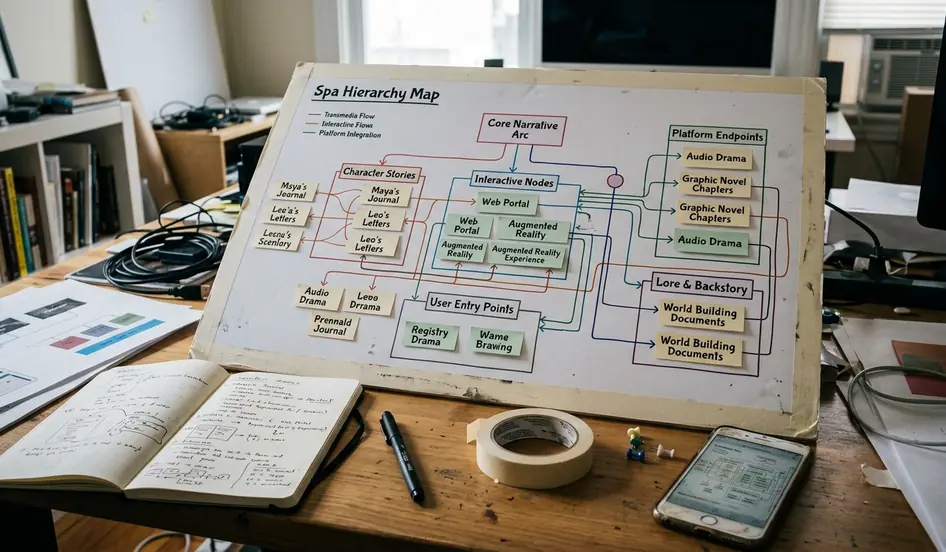
Image alt text: SPA dashboard hierarchy diagram showing stable focal panel, secondary widgets, grid gaps, and accessible status updates during asynchronous loading.
Core Principles of Spatial Organization
Whitespace groups interaction before color does
There are two common approaches to SPA layout. One treats every component as a self-contained tile and relies on borders to separate them. The other uses whitespace to imply groups before drawing boxes around them.
I usually start with the second approach.
Whitespace gives related controls room to behave as a unit. A filter label, dropdown, reset button, and result count should sit close enough to read as one control cluster. The gap between that cluster and the results area should be larger, so the user understands that the action area and output area have different jobs.
For dynamic dashboards, grid gap measurements between about 1.5rem and 2.25rem gave enough separation without making the interface feel scattered. The exact value depends on type scale and density, but the principle stays consistent: small gaps bind, larger gaps separate, and inconsistent gaps confuse.
Z-patterns, F-patterns, and moving content
The Z-pattern works best on simpler screens where the user moves from identity, to explanation, to action. In SPAs, I use it for onboarding states, empty states, and focused task screens. The main risk is overloading the diagonal path with competing cards.
The F-pattern is more useful for data-heavy views. Users scan headings, skim down the left edge, and dip into rows that look relevant. Yet the effectiveness of the F-pattern scanning model diminishes significantly in SPAs that use horizontal scrolling containers for media galleries. Once the page asks the user to scan vertically and horizontally at the same time, the pattern weakens.
We initially considered a rigid 12-column layout for a dynamic reporting interface, then ruled it out in favor of CSS Grid with fractional units. The rigid grid looked orderly in static mockups, but asynchronous component injection exposed its brittleness. Fractional units handled late-arriving cards with less awkward squeezing, and layout shift stabilization took roughly 12 to 18 days of iterative testing.
Pro Tip: Design the grid around the moment content arrives late, not around the moment the mockup looks balanced.
Typography and Color as Navigational Tools
Type should tell the user what to read first
Typography is the quietest navigation system in an SPA. Before users click a menu, they read scale, weight, and spacing. A strong page title says where they are. Section headings divide the work. Dense labels explain controls only after the larger structure feels clear.
For rapid state changes, a modular scale of 1.250 creates visible steps without turning the viewport into a poster. The scale is modest enough for dashboards, but distinct enough to keep a heading from blending into a card label.
I like to test typography by stripping away brand color first. If the page still has a clear reading order in grayscale, the type system is doing real work. If every heading needs a saturated accent to stand apart, the hierarchy is probably too fragile.
Use accent color like a pointer, not paint
High-contrast accent colors should mark interactive states and primary actions. They should not decorate every important thought. When every chart badge, tab, notification, and button competes for the same accent, users stop reading the accent as a signal.
Contrast ratio targets were enforced at 4.5:1 for text and 3.1:1 for interactive UI components. Those targets also fit the broader accessibility direction described in the W3C guidelines on visual presentation, where spacing, readability, and perception shape the experience as much as surface style.
Palette restraint takes time. In the interface notes behind this guide, color palette refinement ran over a 3 to 5 week period because each state needed to be checked in context: default, hover, focus, selected, disabled, loading, and error. The boring work is where the hierarchy becomes dependable.
Scope and Limitations of Dynamic Content Shifts
Visual hierarchy cannot carry every state change
A sharp hierarchy helps sighted users understand priority, but it cannot announce change by itself. Screen reader users may not know that a silent DOM update occurred. Keyboard users may lose context if focus moves without explanation. Users with low vision may miss color-only changes entirely.
This is where SPAs often look finished before they are usable.
ARIA live regions can announce important state changes when content updates without a full page reload. In the work reflected here, live regions were integrated after screen reader failures appeared during silent DOM updates. The failure was not in the visual design alone; it was in assuming that a visible change counted as a communicated change.
Warning: Relying heavily on CSS transitions for hierarchy cues fails entirely for users who have enabled prefers-reduced-motion at the operating system level.
Viewport constraints change the hierarchy
A desktop dashboard may support a stable focal panel, secondary cards, and persistent filters. At 320px, that same hierarchy becomes a stack. At 1440px, it may spread so wide that related elements feel disconnected. Viewport breakpoint testing across 320px to 1440px is not polish work; it is hierarchy work.
Accessibility audits for this type of SPA can fit into roughly an 8 to 12 day window, but the conclusion should stay modest. Audit findings depend on the prototype state, assistive technology coverage, and the range of interaction paths tested. A clean pass through the main flow does not mean every dynamic edge case communicates well.
Testing and Iterating Your Design
Start with qualitative sessions, not a finished interface
Testing revealed the most useful hierarchy problems before the interface looked complete. A prototype with real component behavior and plain visual styling can expose where users hesitate, where they misread priority, and where they wait for feedback that never arrives.
I use a simple sequence:
- Give the user one realistic task, such as filtering a live dashboard after several widgets update.
- Ask them to describe what changed after each interaction.
- Watch whether their eyes return to the intended focal point.
- Note any moment where they pause because the interface updated without enough context.
- Revise spacing, headings, focus handling, or state messages before adding more visual detail.
This keeps the team from debating taste too early. The question is not whether a card looks modern. The question is whether the user can follow the screen as it changes.
Use blur and grayscale tests for structural integrity
The 5-second blur test is blunt, which is why I like it. Apply a 10px Gaussian blur filter, show the interface briefly, and ask what areas feel primary, secondary, or inactive. If the structure disappears under blur, the hierarchy depends too much on fine detail.
Grayscale conversion testing adds a different check. Across about 4 to 6 days of user sessions, it can reveal whether color is carrying meaning that typography, spacing, or component placement should share. Primary actions should still feel primary. Disabled states should not rely on hue alone. Updated regions should have more than a color flash to explain themselves.
SPA Visual Hierarchy Implementation Checklist
- Verify DOM mutation intervals do not trigger layout thrashing.
- Establish focal points for asynchronous data fetches.
- Implement CSS Grid with fractional units for dynamic component injection.
- Apply a 1.250 modular scale for readable hierarchy during state changes.
- Check text contrast at 4.5:1 and interactive component contrast at 3.1:1.
- Test breakpoints from 320px to 1440px before treating the hierarchy as stable.
- Run a 10px blur test before adding high-fidelity assets.
- Review dynamic updates with screen readers and reduced-motion settings enabled.
Iteration is not a cleanup phase for SPAs. It is where the hierarchy learns from real interaction. The interface will keep changing; the user still needs to feel oriented.









Responses
Be the first to comment.
Write a Comment